Intro
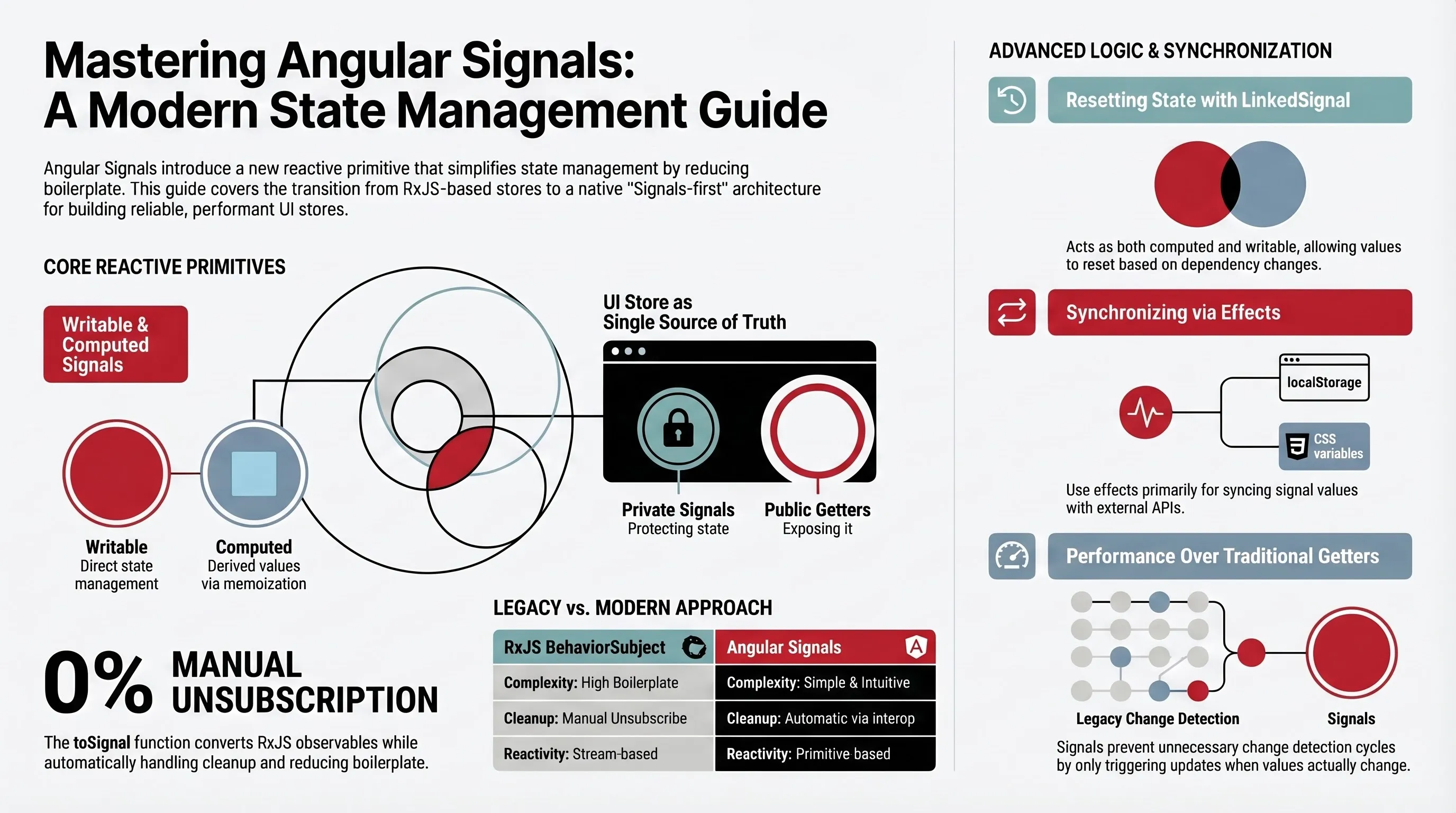
In this article we are going to build a simple eCommerce Platform and we will use Signals, Signal based Inputs/Models, Linked Signal and the Effect, reactive function that tracks the signal dependencies.
Also, while we are waiting for the Signals based forms, in today’s article I am going to use Template Driven Forms which can click up with Signals in natural way.
UI Store
UI Store acts as a single point of truth for the part of the application. It manages the UI-centric state and it describes the application behavior. One Web Application can have multiple stores (local store or feature store).
Signals
Signals as the new reactive primitive are the natural new way how to handle reactivity of the Angular Web Applications. When compared to RxJS, Signals are very simple. Signals can hold one value over time.
Reading the signal value is simple - just call the getter function like this:
const value = signal(0);
console.log('Read signal value by calling the getter: ', value());
// Read signal value by calling the getter: 0
And you can set or update the values like this:
value.set(1);
console.log('Read signal value by calling the getter after set: ', value());
// Read signal value by calling the getter after set: 1

value.update(v => v + 1);
console.log('Read signal value by calling the getter after update: ', value());
// Read signal value by calling the getter after set: 2
Unlike regular getter functions, Signals are memoized therefore calling the getter in the template won’t trigger the new change detection cycle until the value has actually changed.
<p>Current value: {{ value() }}</p>Service Layer
Our application has to provide the actual data from some API. In this case, we are going to mock the fetching of the Products from some API. Let’s build a Products Service like this:
ng generate service services/productsOnce the file is generated, we can create our mocked API service:
import { Injectable } from '@angular/core';
import { of } from 'rxjs';
import { Product } from '../interfaces/product.interface';

const PRODUCTS: Product[] = [
  {
    id: 'prod-001',
    name: 'Wireless Headphones',
    description:
      'Noise-cancelling over-ear Bluetooth headphones with 30 hours battery life.',
    price: 129.99,
    inStock: true,
  },
  {
    id: 'prod-002',
    name: 'Smart Water Bottle',
    description:
      'Tracks your water intake and glows to remind you to stay hydrated.',
    price: 49.99,
    inStock: true,
  },
  // ...
  {
    id: 'prod-009',
    name: 'Laptop Stand',
    description: 'Adjustable aluminum stand for laptops up to 17 inches.',
    price: 22.75,
    inStock: true,
  },
];

@Injectable({
  providedIn: 'root',
})
export class ProductsService {
  getAll() {
    return of(PRODUCTS);
  }
}
Also, we would need to define a Product interface. First, let’s generate the file by running the following command in the root of the project.
ng generate interface interfaces/productAnd edit the Product interface file:
export interface Product {
  id: string;
  name: string;
  description: string;
  price: number;
  inStock: boolean;
}
Products List Page
For the purpose of this demo, I’ll make the application as simple as possible. I won’t implement the Master/Details page flow, I want to add the products to the Shopping Cart right here on the Products List Page (App Component in this example).
In order to load the products from the service, first we need to inject the service in our main component.
@Component({
  selector: 'app-root',
  template: `
    <h1>eCommerce Demo</h1>
  `,
})
export class AppComponent {
  readonly productsService = inject(ProductsService);
In the past, we would probably use ngOnInit method to subscribe to the
Observable and then populate the data in the component like this:
@Component({
  selector: 'app-root',
  template: `
    <h1>eCommerce Demo</h1>
  `,
})
export class App implements OnInit {
  readonly productsService = inject(ProductsService);
  private readonly destroyRef = inject(DestroyRef);

  products: Product[] = [];

  ngOnInit(): void {
    this.productsService.getAll()
      .pipe(takeUntilDestroyed(this.destroyRef))
      .subscribe(products => this.products = products);
  }
We would need to unsubscribe as well as a general rule when working with RxJS Observable streams.
However, there is a nicer way. We could use the toSignal function to convert
the Observable to Signals:
import { Component, inject } from '@angular/core';
import { toSignal } from '@angular/core/rxjs-interop';

@Component({
  selector: 'app-root',
  template: `
    <h1>eCommerce Demo</h1>
  `,
})
export class AppComponents {
  readonly productsService = inject(ProductsService);

  readonly products = toSignal(this.productsService.getAll(), {
    initialValue: [],
  });
Cool thing about the toSignal function from the
@angular/core/rxjs-interop package is that does the unsubscribe for us.
Also, as you can see, much less boilerplate.
In order to display these products in the template, we would need to generate the Product Card component.
Product Card Component
The Product Card component will be a simple, presentational component with one input and one output.
But first, let’s generate:
ng generate component components/product-cardLet’s define our Product Card component:
import { Component, input, computed, output } from '@angular/core';
import { Product } from '../../interfaces/product.interface';

@Component({
  selector: 'app-product-card',
  imports: [],
  templateUrl: './product-card.component.html',
  styleUrl: './product-card.component.css',
})
export class ProductCardComponent {
  readonly product = input.required<Product>();
  readonly addToCart = output<Product>();

  protected readonly stockAvailibility = computed(
    () => this.product().inStock ? 'In Stock' : 'Out of Stock'
  );
}
We have defined the signal based input for the product and one event emitter using the new output function. Notice that we have introduced the Computed Signal which will be used to display the availability of the product based on the product input signal.
And the template will look like this:
<div class="product-card">
  <h2 class="product-name">{{ product().name }}</h2>
  <p class="product-description">{{ product().description }}</p>
  <p class="product-price">${{ product().price }}</p>
  <p class="product-stock" [class.out-of-stock]="!product().inStock">
    {{ stockAvailibility() }}
  </p>
  <button
    class="add-button"
    (click)="addToCart.emit(product())"
    [disabled]="!product().inStock"
  >
    Add to Cart
  </button>
</div>
Styling:
.product-card {
  border: 1px solid #ccc;
  padding: 1rem;
  border-radius: 6px;
  margin-bottom: 1rem;
  max-width: 100%;
}

.product-name {
  font-size: 1.25rem;
  margin: 0 0 0.5rem;
}

.product-description {
  font-size: 0.95rem;
  color: #555;
}

.product-price {
  font-weight: bold;
  margin: 0.5rem 0;
}

.product-stock {
  font-size: 0.9rem;
  color: green;
}

.product-stock.out-of-stock {
  color: red;
}

.add-button {
  padding: 0.5rem 1rem;
  font-size: 0.9rem;
  border: none;
  border-radius: 4px;
  background-color: #007bff;
  color: white;
  cursor: pointer;
}

.add-button:disabled {
  background-color: #aaa;
  cursor: not-allowed;
}
Displaying of the Products
Remember how we prepared the products signal that comes from the RxJS Observable using
toSignal function? Now it’s time to display products cards in our
AppComponent:
import { Component, inject } from '@angular/core';
import { ProductCardComponent } from './app/components/product-card/product-card.component';
import { ProductsService } from './app/services/products.service';
import { Product } from './app/interfaces/product.interface';
import { toSignal } from '@angular/core/rxjs-interop';

@Component({
  selector: 'app-root',
  imports: [
    ProductCardComponent,
  ],
  template: `
    <h1>eCommerce Demo</h1>

    <div>
      @for (product of products(); track product.id) {
        <app-product-card [product]="product" (addToCart)="false"/>
      }
    </div>
  `,
})
export class AppComponents {
  readonly productsService = inject(ProductsService);

  readonly products = toSignal(this.productsService.getAll(), {
    initialValue: [],
  });
}
Notice that we are not handling the addToCart event at this point. For that we
would need to start implementing our UI Store.
Shopping Cart Store
In the past, if you didn’t want to use NgRx, Akita or similar UI Store solutions in your
Angular projects, you would probably use RxJS and BehaviorSubject. Similar
vibes here: instead of RxJS we are going to use Signals.
Let’s create Shopping Cart Store as an Angular Service:
ng generate service stores/shopping-cart-storeThe idea is that store’s sole responsibility is to hold the data. No side effects, just pure data storing and couple of methods that comes along with it.
Let’s define our models/interfaces in the same file as the service:
export interface CustomerDetails {
  firstName: string;
  lastName: string;
  street: string;
  city: string;
  postalCode: string;
}

export interface ShoppingCartItem {
  product: Product;
  quantity: number;
}

export interface ShoppingCartStore {
  items: ShoppingCartItem[];
  totalPrice: number;
  customerDetails: CustomerDetails;
  discount: number;
}
Our centralized feature store for the Shopping Cart will hold the information what items have been added to cart & quantity, customer information such as name and place, optional discount and total price of the order. Since store data is synchronous, we would need our start values.
const INITIAL_ITEMS: ShoppingCartItem[] = [];

const INITAL_CUSTOMER_DETAILS: CustomerDetails = {
  firstName: '',
  lastName: '',
  street: '',
  city: '',
  postalCode: '',
};

@Injectable({
  providedIn: 'root',
})
export class ShoppingCartStoreService {
  readonly #items = signal<ShoppingCartItem[]>(INITIAL_ITEMS);
  readonly #customerDetails = signal<CustomerDetails>(INITAL_CUSTOMER_DETAILS);
  readonly #discount = signal(0);
  readonly #totalPrice = computed(() => {
    return this.#items().reduce(
      (sum, item) => sum + item.product.price * item.quantity,
      0
    );
  });
}
Shopping Cart Store Items, Customer Details and Discount are regular Writable Signals.
Notice that we used private # accessor to make our Store data protected from
writing from the outside world.
Shopping Cart Store Total Price is a Computed which tracks the dependency of the value of the Shopping Cart Store Items and takes quantity into consideration when calculating total price of the order.
We can expose each store element as readonly from outside world in two ways:
@Injectable({
  providedIn: 'root',
})
export class ShoppingCartStore {
  // ...
  readonly #customerDetails = signal<CustomerDetails>(INITAL_CUSTOMER_DETAILS);

  // 1st approach:
  readonly customerDetails = this.#customerDetails.asReadonly();

  // 2nd approach:
  readonly customerDetails = computed(() => ({...this.#customerDetails()}));
}
I prefer computed given that we can still access the value of the object reference so we can create a new instance with spread operator. The reason why I am preferring that approach is because we don’t want to mutate the reference itself.
Customer Details Form
Since we have our very first ‘selector like’ piece of the store, let’s show it in the UI somehow. Since we are expecting the input from the user, let’s create a form, template driven form this time.
ng generate component components/customer-details-form
Our component would need to import FormsModule from the
@angular/forms package and we will define one input and one output.
@Component({
  selector: 'app-customer-details-form',
  imports: [FormsModule],
  templateUrl: './customer-details-form.component.html',
  styleUrl: './customer-details-form.component.css',
})
export class CustomerDetailsFormComponent {
  readonly customer = input.required<CustomerDetails>();
  readonly submit = output<CustomerDetails>();
}
And its template:
<form #customerForm="ngForm">
  <div>
    <label for="firstName">First Name:</label>
    <input
      id="firstName"
      name="firstName"
      [(ngModel)]="customer().firstName"
      required
      #firstName="ngModel"
    />
    @if (!firstName.valid && !firstName.pristine) {
    <div>First name is required.</div>
    }
  </div>

  <div>
    <label for="lastName">Last Name:</label>
    <input
      id="lastName"
      name="lastName"
      [(ngModel)]="customer().lastName"
      required
      #lastName="ngModel"
    />
    @if (!lastName.valid && !lastName.pristine) {
    <div>Last name is required.</div>
    }
  </div>

  <div>
    <label for="street">Street:</label>
    <input
      id="street"
      name="street"
      [(ngModel)]="customer().street"
      required
      #street="ngModel"
    />
    @if (!street.valid && !street.pristine) {
    <div>Street is required.</div>
    }
  </div>

  <div>
    <label for="city">City:</label>
    <input
      id="city"
      name="city"
      [(ngModel)]="customer().city"
      required
      #city="ngModel"
    />
    @if (!city.valid && !city.pristine) {
    <div>City is required.</div>
    }
  </div>

  <div>
    <label for="postalCode">Postal Code:</label>
    <input
      id="postalCode"
      name="postalCode"
      [(ngModel)]="customer().postalCode"
      required
      pattern="^[0-9]{5}$"
      #postalCode="ngModel"
    />
    @if (!postalCode.valid && !postalCode.pristine) {
    <div>Postal code is required.</div>
    }
  </div>

  <button type="button" (click)="submit.emit(customer())">Submit</button>
</form>
Notice that each property of the input signal customer is bidden via NgModel directive and that we are emitting the customer details on button click. That’s why we destructed the object itself in the store. Otherwise we would mutate data directly in memory and might have some unwanted side effects.
UI Store methods
Let’s define a couple of methods in our store. The very first method we can implement is adding to cart functionality. Let’s edit the Shopping Cart Store Service file:
@Injectable({
  providedIn: 'root',
})
export class ShoppingCartStoreService {
  readonly #items = signal<ShoppingCartItem[]>(INITIAL_ITEMS);

  addItem(product: Product, quantity: number = 1) {
    this.#items.update((items: ShoppingCartItem[]) => {
      const index = items.findIndex((item) => item.product.id === product.id);

      if (index > -1) {
        const updatedItems = [...items];
        const existingItem = updatedItems[index];
        updatedItems[index] = {
          ...existingItem,
          quantity: existingItem.quantity + quantity,
        };
        return updatedItems;
      }

      return [...items, { product, quantity }];
    });
  }
}
First we check if the product with the same ID exists. If it does, we would update the quantity, otherwise add the new item. Next thing we are going to do is go back to the App Component where we can handle the item addition to the cart on user click on the button in the Product Card Component.
@Component({
  selector: 'app-root',
  imports: [
    ProductCardComponent,
    CustomerDetailsFormComponent,
  ],
  template: `
    <h1>eCommerce Demo</h1>

    <div>
      <app-customer-details-form [customer]="customerDetails()" (submit)="addCustomer($event)"/>
    </div>

    <div>
      @for (product of products(); track product.id) {
        <app-product-card [product]="product" (addToCart)="addToCart($event)"/>
      }
    </div>
  `,
})
export class AppComponent {
  readonly productsService = inject(ProductsService);
  readonly shoppingCartService = inject(ShoppingCartStoreService);

  readonly products = toSignal(this.productsService.getAll(), {
    initialValue: [],
  });
  readonly customerDetails = this.shoppingCartService.customerDetails;

  addCustomer(customerDetails: CustomerDetails) {
    console.log('customerDetails', customerDetails);
  }

  addToCart(product: Product) {
    this.shoppingCartService.addItem(product);
  }
}
Shopping Cart Details
Now we need to display these data on the UI to make sure our Store works. Let’s create a component Shopping Cart Details where we can display our Store content.
@Component({
  selector: 'app-shopping-cart-details',
  imports: [CurrencyPipe],
  templateUrl: './shopping-cart-details.component.html',
  styleUrl: './shopping-cart-details.component.css',
})
export class ShoppingCartDetailsComponent {
  readonly shoppingCart = input.required<ShoppingCartStore>();

  protected readonly fullName = computed(() => {
    const firstName = this.shoppingCart().customerDetails.firstName;
    const lastName = this.shoppingCart().customerDetails.lastName;

    if (!firstName && !lastName) {
      return null;
    } else {
      return `${firstName} ${lastName}`;
    }
  });

  protected readonly address = computed(() => {
    const street = this.shoppingCart().customerDetails.street;
    const postalCode = this.shoppingCart().customerDetails.postalCode;
    const city = this.shoppingCart().customerDetails.city;

    if (!street && !postalCode && !city) {
      return null;
    } else {
      return `${street}, ${postalCode} ${city}`;
    }
  });
}
The purely presentational component itself will have one input - the whole Shopping Cart Store object. Let’s define the template:
<div class="shopping-cart-details">
  <p>
    Full name: <strong>{{ fullName() }}</strong>
  </p>
  <p>
    Address: <strong>{{ address() }}</strong>
  </p>
  <div>
    <ul>
      @for (item of shoppingCart().items; track item.product.id) {
      <li>
        <strong>{{ item.product.name }}</strong> ({{ item.quantity }} x
        {{ item.product.price | currency }})
        <span>
          <button (click)="false">-</button>
        </span>
      </li>
      } @empty {
      <li>No products in the shopping cart</li>
      }
    </ul>
  </div>
  <p>
    Total price: <strong>{{ shoppingCart().totalPrice | currency }}</strong>
  </p>
</div>
LinkedSignal
What if we want to implement some weird discount logic that will be possible for user to grab but only if certain conditions are met. For the start, let’s add a Apply Discount button in the Shopping Cart Details component.
We want to enable the button only if total price is greater than $150.00 and customer can only use the discount once.
@Component({
  selector: 'app-shopping-cart-details',
  imports: [CurrencyPipe],
  templateUrl: './shopping-cart-details.component.html',
  styleUrl: './shopping-cart-details.component.css',
})
export class ShoppingCartDetailsComponent {
  readonly shoppingCart = input.required<ShoppingCartStore>();
  readonly applyDiscount = output<void>();
  readonly removeItem = output<string>();
  readonly discountApplied = signal<boolean>(false);

  onApplyDiscount() {
    this.discountApplied.set(true);
    this.applyDiscount.emit();
  }
}
And edit its template file:
<div class="shopping-cart-details">
  <!-- ... -->
  <button
    (click)="onApplyDiscount()"
    [disabled]="discountApplied() || shoppingCart().totalPrice < 150"
  >
    Apply discount
  </button>

  @if (discountApplied()) {
  <p>
    Applied discount: <strong>{{ shoppingCart().discount }}%</strong>
  </p>
  }
</div>
On Apply discount button click we are emitting the event and also disabling user from emitting the same event again. In the App Component file we can handle the emitted event.
In order not to use some hacky effects or flag variables, linkedSignal comes to
the rescue. :)
@Injectable({
  providedIn: 'root',
})
export class ShoppingCartStoreService {
  readonly #items = signal<ShoppingCartItem[]>(INITIAL_ITEMS);
  readonly #customerDetails = signal<CustomerDetails>(INITAL_CUSTOMER_DETAILS);
  readonly #discount = signal(0);
  readonly #totalPrice = linkedSignal(() => {
    return this.#items().reduce(
      (sum, item) => sum + item.product.price * item.quantity,
      0
    );
  });
  // ...

  applyDiscount() {
    if (this.#discount() === 0) {
      const discount = Math.floor(Math.random() * 21);
      this.#discount.set(discount);
      this.#totalPrice.update((value) => (value * (100 - discount)) / 100);
    }
  }
}
As you can see, Linked Signal acts as a both Computed and Writable Signal. When we defined
its value, we used computation. However, in the applyDiscount method we are
updating the total price with newly generated discount amount using the update method.
Effects
Effects should be used with caution, primarily for syncing the signal values which are not possible to be done via computed or linkedSignal, updating CSS variables, syncing with local storage, or emitting output values. Do not use effects for async updates on non-reactive variables.
For the purpose of this article, we are going to synchronize the value of the customer with
the localStorage. Keep It Simple, Stupid.
Effects have to be defined on the constructor level so we would do something like this in our Shopping Cart Store Service:
const CUSTOMER_DETAILS_STORAGE_KEY = 'customerDetails';

@Injectable({
  providedIn: 'root',
})
export class ShoppingCartStoreService {
  // ...

  constructor() {
    const customerDetails = JSON.parse(
      localStorage.getItem(CUSTOMER_DETAILS_STORAGE_KEY) || 'null'
    );
    if (customerDetails) {
      this.#customerDetails.set(customerDetails);
    }

    effect(() => {
      const customerDetails = this.#customerDetails();
      localStorage.setItem(
        CUSTOMER_DETAILS_STORAGE_KEY,
        JSON.stringify(customerDetails)
      );
    });
  }
}
Notice that we are checking if there is already the value in the store for the customer. If
there is, we would update the customerDetails signal. After that, we are
defining an effect that will set customer data into the localStorage.
Conclusion
Custom Angular Signal Stores offer a lightweight, fine-grained alternative to traditional state management solutions. By leveraging Angular’s reactivity model through signals, developers can build highly performant, modular, and intuitive stores without the overhead of external libraries.
Whether you’re replacing complex NgRx setups or simply managing UI state in a more controlled way, custom signal stores provide a powerful pattern that aligns with Angular’s evolving ecosystem. As the framework continues to embrace signals-first architecture, mastering this approach will position your applications - and your skills - for long-term success.